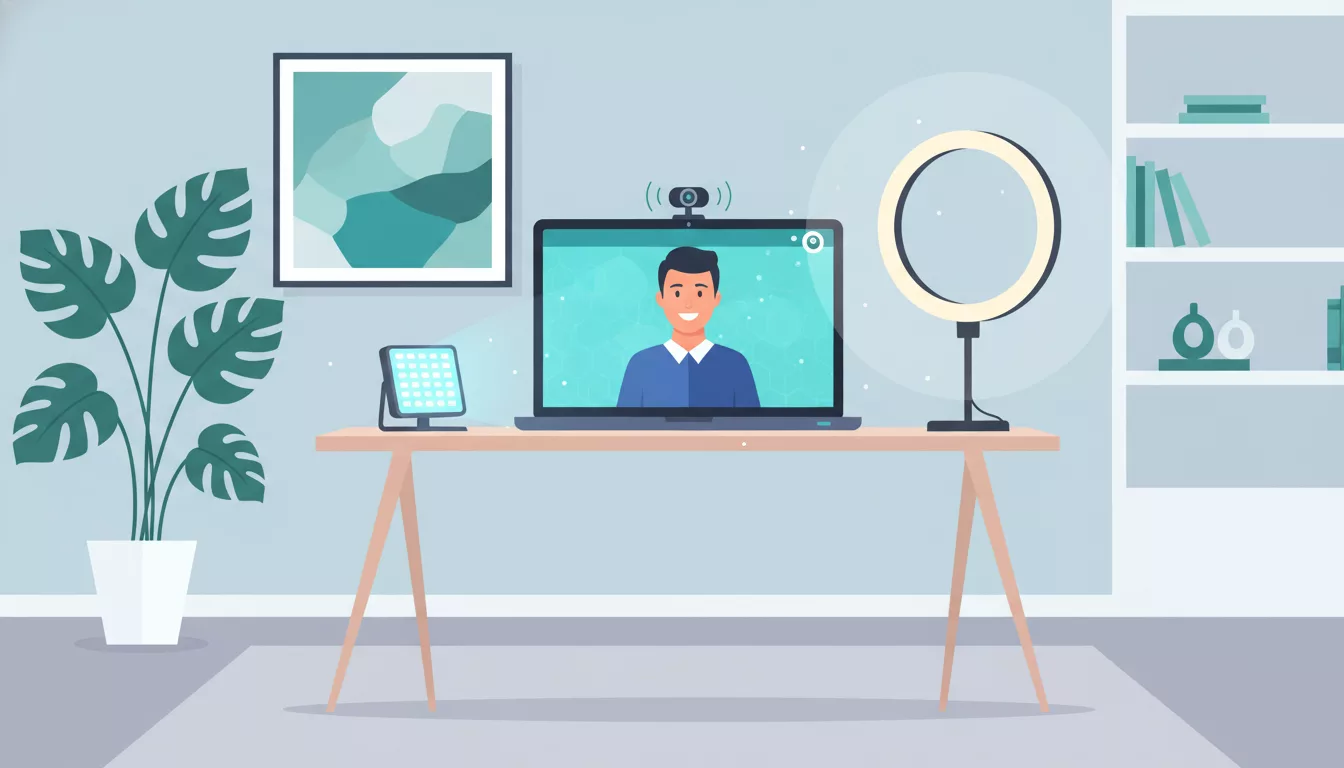
More than 60% of first-round interviews in 2026 happen over video. That number has been climbing for years, and it's not going back down. Companies save time, candidates skip the commute, and hiring managers can screen more people in a single afternoon. Virtual interviews are the default now.
And yet, most candidates still treat them like regular interviews that just happen to be on a screen. They spend hours rehearsing answers to how to answer "tell me about yourself" but never once test their webcam. They research the company inside and out but interview in a dim room with a pile of laundry visible behind them. The technology side of virtual interviews trips people up constantly — and it doesn't have to.
I've watched thousands of candidates go through virtual interviews. The ones who nail the tech setup almost always perform better overall. Not because the tech itself matters more than their answers, but because when you're not worrying about whether your microphone is working, you can actually focus on the conversation. This guide covers everything you need to do before, during, and after a virtual interview so the technology disappears and your qualifications do the talking.
Why Virtual Interviews Are Different
A virtual interview is not just an in-person interview on a screen. The dynamics shift in ways most people don't think about.
Body language reads differently on camera. That subtle lean-forward you'd do in person? It barely registers on a webcam. Your hand gestures might be completely out of frame. And the interviewer can only see you from the chest up, which means your facial expressions carry about three times the weight they would in a conference room.
Technical issues create a specific kind of stress that doesn't exist in person. You'd never worry about your voice cutting out mid-sentence in a face-to-face meeting. But on a video call, that anxiety sits in the background the entire time — unless you've prepared for it.
Your environment becomes part of the impression. In an office, the company controls the setting. On video, your background, your lighting, and your audio quality all say something about you. Fair or not, a candidate with crisp audio and good lighting comes across as more put-together than someone who looks like they're calling from a cave.
If you're interviewing for positions you can do from home, your virtual interview setup is essentially a preview of what your remote work setup looks like. Hiring managers notice.
The Tech Setup Checklist
Get this right once and you can reuse the same setup for every virtual interview going forward. Spend 30 minutes on this and you'll be ahead of 80% of candidates.
Camera Positioning
Your camera should be at eye level. Not below you (the dreaded "up the nose" angle), not way above you. Eye level. If you're using a laptop, stack it on a few books or a box until the camera sits roughly even with your eyes. Keep the camera about an arm's length away from your face — close enough that the interviewer can see your expressions, far enough that you're not filling the entire screen with your forehead.
Lighting
Natural light is your best friend, but it needs to be facing you, not behind you. Sit facing a window. If you sit with a window behind you, you'll look like a silhouette. No windows? A simple desk lamp placed behind your monitor, pointing at your face, works fine. Avoid overhead fluorescent lights as your only source — they cast harsh shadows under your eyes.
Microphone
Your laptop's built-in microphone is acceptable. Earbuds with an inline mic are better. A USB microphone or a decent headset is best. Whatever you use, test it beforehand. Record yourself talking for 30 seconds and listen back. If your audio sounds tinny, echoing, or quiet, fix it before the interview. Bad audio is more distracting than bad video.
Internet Connection
Ethernet beats Wi-Fi every single time. If you can plug in, plug in. If you're on Wi-Fi, sit as close to your router as possible. Run a speed test — you want at least 10 Mbps upload and download for a smooth video call. And have a backup plan: keep your phone's hotspot ready to go in case your home internet drops.
Platform Familiarity
Find out which platform the interview will use — Zoom, Microsoft Teams, Google Meet, or something else — and open it at least once before interview day. Make sure you've installed the app if needed. Know where the mute button is. Know where the camera toggle is. This sounds basic, but fumbling with an unfamiliar interface during the first 30 seconds of an interview sets a bad tone.
Background
Clean, neutral, and professional. A plain wall works. A bookshelf works. A tidy home office works. What doesn't work: an unmade bed, a cluttered kitchen, or a background so busy it pulls attention away from you. Virtual backgrounds are an option, but they can glitch around the edges of your hair and hands. If you use one, test it first and make sure it doesn't look weird when you move.
What to Do 24 Hours Before
The day before your interview is when you eliminate surprises. Here's your checklist:
Test your setup with a real person. Call a friend on the same platform your interview will use. Ask them how your video looks, how your audio sounds, and whether your background is distracting. A five-minute test call can save you from showing up with your camera pointing at the ceiling.
Check your internet speed. Go to speedtest.net and run a test. If your speeds are low, figure out why. Close other devices that might be eating bandwidth. Or plan to use your phone's hotspot as a backup.
Charge your laptop. Even if you plan to stay plugged in, charge it fully. Power cables get knocked loose. Outlets fail. A fully charged battery is your safety net.
Have a backup plan. Get the interviewer's phone number or email address. If your internet dies completely, you need a way to reach them and switch to a phone interview instead. Most interviewers are understanding about tech failures — but only if you can quickly communicate what happened.
Close unnecessary browser tabs. You don't want a news notification popping up during your interview. You don't want your browser eating up RAM. Close everything you don't need.
Set up "Do Not Disturb" on all devices. Your phone, your laptop, your tablet, your smartwatch. All of them. A text notification buzzing on your desk during a critical answer is a momentum killer.
Prep your cheat sheet. Write down key company facts, the names and titles of your interviewers, and your questions to ask the interviewer. Print this out or put it in a document you can glance at. This is one advantage virtual interviews give you — use it.
What to Do 5 Minutes Before
You're dressed. You're prepared. Here's your final pre-flight checklist:
- Log in 5 minutes early. Not 15 minutes (that can be awkward if the interviewer gets a notification you're waiting). Not 1 minute. Five minutes is the sweet spot.
- Check your camera and audio in the platform's preview screen. Most platforms show you a preview before you join.
- Close Slack, email, and any messaging apps. If they're open, close them. Desktop notifications are interview saboteurs.
- Have water nearby. Not coffee (you might spill it and it can make your mouth dry). Water. Keep it just off-camera within easy reach.
- Position your notes near screen level. Tape your cheat sheet to the wall right next to your monitor, or put it in a window positioned near the camera. If your notes are on your desk, you'll look down every time you glance at them.
- Do a quick lighting check. Look at your preview. Can the interviewer see your face clearly? Adjust if needed.
- Silence your phone. Not vibrate. Silence. Then put it face-down somewhere out of sight.
- How to Answer "What Motivates You?"
During the Interview: Camera Presence
This is where most candidates fall short. They've prepared great answers but they deliver them while staring at the wrong spot on their screen. Here's how to actually look good on camera.
Look at the Camera When You Speak
This is the single most important piece of advice in this entire guide. When you talk, look at the camera lens — that little dot at the top of your screen. Not at the interviewer's face on your monitor. Looking at the camera simulates direct eye contact. Looking at the screen makes it look like you're staring at their chin or looking slightly away. It feels unnatural at first. Practice it.
Position the Video Feed Near Your Camera
Drag the interviewer's video window to the top of your screen, as close to your camera as possible. This way, even when you're looking at them (which is fine when they're talking), your eye line is close to the camera. It's a small trick that makes a big difference.
Use Hand Gestures — But Keep Them in Frame
Talking with your hands makes you appear more natural and energetic. But if your hands are below the camera frame, the interviewer just sees your shoulders moving weirdly. Keep your gestures in the visible area. Think chest-to-shoulder height.
Make Your Expressions Slightly Bigger
On camera, a small nod barely registers. A slight smile can look neutral. Exaggerate your reactions by about 20%. Nod more visibly. Smile a touch wider. React to what the interviewer says so they know you're engaged. On a screen, subtlety gets lost.
Dress Fully
Yes, fully. Pants included. There are horror stories of candidates who stood up during an interview wearing boxers. But beyond that, dressing completely changes your mindset. It puts you in interview mode. For specifics on what to wear, check out our guide on what to wear to an interview — the same principles apply for virtual, with one addition: avoid busy patterns and thin stripes, which can create a distracting shimmer effect on camera.
Sit Up Straight, But Stay Natural
You don't need military posture. Sit with your back against the chair, shoulders relaxed, and lean slightly forward. This projects interest without making you look stiff. And don't swivel if you're in a rolling chair — it's more noticeable on camera than you think.
Handling Technical Issues
Technical problems happen. They happen to interviewers too. How you handle them matters far more than the fact that they occurred.
If Your Video Freezes
Turn off your camera, wait a few seconds, then turn it back on. If that doesn't work, leave the call and rejoin. Say something like: "I apologize — my video froze for a moment. Can you see me now?" Then move on. Don't dwell on it.
If Your Audio Cuts Out
Switch to your phone's audio. Most platforms let you dial in by phone while keeping the video on your computer. If you can't fix it quickly, type in the chat: "Having audio issues — switching to phone. One moment." This shows you're composed and have a plan.
If Your Internet Drops Entirely
This is why you have the interviewer's phone number. Call them immediately. Say: "I'm so sorry about that — my internet went down. Would you prefer to continue by phone, or should we reschedule?" Most interviewers will pick one and move forward. They've seen it before. A lot.
The key in all of these situations: don't panic, don't over-apologize, and don't spend five minutes explaining what happened. Acknowledge it briefly, fix it, and get back to the conversation. Interviewers are evaluating how you handle unexpected problems — this is actually a chance to show composure.
The Virtual Interview Mistake Most People Make
I want to come back to this because it's that important: most candidates talk to the screen instead of the camera.
Think about it. In person, you look someone in the eye when you're speaking to them. On video, looking at their face on your screen creates the appearance that you're looking down or slightly off to the side. It's subtle, but the interviewer feels it. You come across as less confident, less engaged, maybe even a little shifty.
The fix is simple but it takes practice. When you're speaking, look at the camera lens. When the interviewer is speaking, you can look at their face on screen — that's fine, because the focus is on listening, not projecting confidence.
Try this: open your camera app right now, look at your own image on screen, and then look at the camera. See the difference? When you look at the camera, it appears as if you're making direct eye contact with whoever is watching. That's what you want during your answers.
Spend 10 minutes practicing this before your interview. Talk through your answer to a common question like answering weakness questions while maintaining camera eye contact. It will feel strange at first. By the third or fourth practice run, it'll start to feel natural.
Platform-Specific Tips
Each video platform has its own quirks. Here's what you need to know about the big four.
Zoom
Zoom is still the most commonly used platform for interviews. Make sure you have the desktop app installed — the browser version has fewer features and can be glitchy. Check your audio and video in Settings before you join. If the interviewer has a waiting room enabled, you'll sit in a holding screen until they let you in — this is normal, don't panic. Zoom's "Touch Up My Appearance" setting (under Video settings) adds a soft-focus filter that can smooth out your image slightly. It's subtle and worth turning on.
Microsoft Teams
Teams is common in corporate environments. If you don't have a Microsoft account, you can usually join as a guest through the link in your calendar invite. Teams can be heavy on system resources, so close other applications. The "Background Effects" option lets you blur your background or use a virtual image — blur tends to look more professional than a virtual background. If you're interviewing with a panel of people, Teams' gallery view can be useful. Check our group interview preparation guide if you're facing multiple interviewers at once.
Google Meet
Meet runs in your browser, so no app to install. Use Chrome for the best experience — other browsers can have compatibility issues. Meet has a "check your audio and video" screen before you join, which is handy. One quirk: Meet's noise cancellation is aggressive. It's generally good, but it can sometimes cut off the beginning of your sentences if there's a pause. Speak up clearly and you'll be fine.
Webex
Webex is popular with larger enterprises and government organizations. Download the app ahead of time — the web version is unreliable. Webex tends to have a slightly longer connection time when joining meetings, so log in a few minutes early. Test your audio within the app before the meeting starts. If the interviewer shares their screen to show you something, Webex sometimes defaults to a layout that makes the video feeds tiny — you can resize them by dragging the divider.
What to Do After the Virtual Interview
The interview ends. You close your laptop. Now what?
Send a thank-you email within 2-4 hours. Not 24 hours later — by then, you're one of a dozen names blurring together in the interviewer's mind. Two to four hours is the sweet spot. Quick enough to stay top of mind, not so quick that it looks like you had it pre-written. For a detailed breakdown on how to structure it, see our guide on writing a thank-you email after an interview.
Reference something specific from the conversation. Don't send a generic "thanks for your time" email. Mention a particular topic you discussed, a project they described, or an insight they shared. This proves you were listening and creates a personal connection.
Follow up on anything you promised. If you said "I'll send you a link to that project" or "I'll forward my portfolio," do it in the same email or within a few hours. Following through on small commitments signals reliability — and that matters more than most people realize. Our follow-up email guide walks through exactly how to handle this.
Write down your impressions while they're fresh. What questions did they ask? How did you feel about your answers? What would you do differently? If you move to the next round, this information is gold. If you don't, it's still useful for your next interview.
Virtual Interview vs. In-Person: What Changes
Here's a quick breakdown of what shifts when you move from a conference room to a screen:
| Factor | In-Person | Virtual |
|---|---|---|
| Eye contact | Look at the person | Look at the camera lens |
| Body language | Full-body visible | Chest-up only — expressions matter more |
| Environment | Company controls the setting | You control it — make it work for you |
| Notes | Awkward to reference | Easy — tape them near your camera |
| Handshake | Firm handshake matters | Warm greeting and a smile instead |
| Dress code | Full outfit required | Still full outfit — but avoid busy patterns on camera |
| Arrival | 10-15 minutes early | 5 minutes early (log into the call) |
| Tech issues | Rarely a concern | Always have a backup plan ready |
| Follow-up | Thank-you within 24 hours | Thank-you within 2-4 hours |
| Distractions | Managed by the company | Your responsibility — silence everything |
One thing that doesn't change: preparation. Whether you're sitting across a desk or across a Zoom call, knowing the company, knowing your own story, and being ready with strong questions to ask still matters more than anything else. And if you're interviewing for one of the best remote jobs out there, your virtual interview performance is also a demonstration of how well you'll communicate day-to-day in a remote work environment.
Frequently Asked Questions
Should I use a virtual background for my interview?
Only if your actual background is genuinely distracting and you can't change it. Virtual backgrounds can glitch, especially when you move your hands or lean to the side. A blurred background is a safer option on most platforms. If you do use a virtual background, choose something simple — a plain office scene, not a beach sunset. And test it beforehand to make sure it doesn't flicker or clip around your edges.
Is it okay to have notes during a virtual interview?
Absolutely. This is one of the genuine advantages of interviewing from home. But there's a right way to do it. Don't read from a script — interviewers can tell immediately. Instead, keep bullet points with key facts about the company, the skills on your resume you want to highlight, and your prepared questions. Position them at eye level near your camera so glancing at them looks natural, not like you're reading off your desk.
What do I do if my roommate or family member makes noise during the interview?
Warn everyone in your household ahead of time. Put a note on your door. But if it happens anyway — a dog barks, a kid walks in, construction starts next door — briefly apologize and move on. Say something like "Sorry about that — as you can see, my dog has opinions about this conversation." A moment of humor shows you're human and composed under pressure. Interviewers have pets and kids too. They get it.
How early should I log into the virtual interview?
Five minutes before the scheduled time. Logging in 10-15 minutes early can create awkward pressure on the interviewer if they get a notification you're waiting. But logging in right at the scheduled time — or worse, a minute late — starts things on a stressed note. Five minutes gives you time to check your audio and video one more time without making anyone feel rushed.
Can I do a virtual interview from my phone if my computer isn't working?
As a backup, yes. But don't plan on it. Phone interviews via video have several problems: the camera angle is hard to control, the screen is small so you can't see the interviewer well, and holding your phone steady for 30-60 minutes is nearly impossible. If you must use your phone, prop it up at eye level using a stack of books or a phone stand. Switch to landscape mode. And make sure your phone interview skills are sharp in case video doesn't work at all and you need to go audio-only.
Keep Reading
- How to Ace a Phone Interview in 2026
- How to Prepare for a Group Interview
- What to Wear to a Job Interview in 2026
- How to Answer "Tell Me About Yourself"
- How to Write a Thank You Email After an Interview
- 35+ Smart Questions to Ask the Interviewer
- The Complete Guide to Finding Remote Jobs in 2026
- 21 Remote Work Tips to Stay Productive
- How to Answer "What Is Your Greatest Weakness?"
- How to Write a Follow-Up Email After an Interview
- How to Prepare for a Second Interview
- How to Answer "What Motivates You?"
- Signs You Got the Job After an Interview: 10 Signals to Watch For